Quick Mask selections
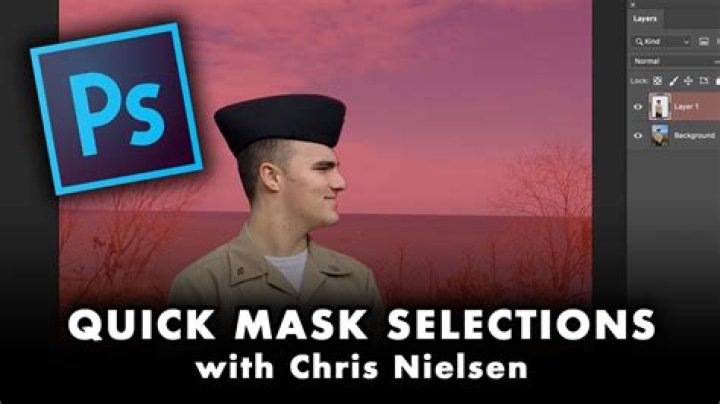
Using Quick Mask mode, you can modify (or create) a selection using pixel-editing tools.
When entering this mode, your selection is temporarily presented as a pixel mask. Pixels can be added or erased using the standard Painting and Erase tools.
- Painting in black will erase areas from the selection.
- Painting in white will add areas to the selection.
- Painting a grey will vary the opacity of the selection depending on the tone of grey used.
- Erased areas are always removed from a selection.
By default, the Quick Mask is presented in the workspace as a translucent, monochrome overlay. The monochrome areas are not included in the selection. This default view can be changed depending on your preferences.
![Quick Mask]() To edit a selection using Quick Mask mode:
To edit a selection using Quick Mask mode:
- Do one of the following:
- Press Q.
- On the Toolbar, click Quick Mask.
- From the Select menu, select Edit Selection As Layer.
- Click or drag on the page using any pixel-editing tool.
- Repeat step 1 to exit Quick Mask mode and display the selection as a marquee.
- (Optional) To create a layer mask using the current selection, from the Layer menu, select New Mask Layer.
![Quick Mask]() To change Quick Mask view:
To change Quick Mask view:
- On the Toolbar, click the arrow next to Quick Mask Enabled and then select a Show As option from the pop-up menu.